> ## Documentation Index
> Fetch the complete documentation index at: https://braintrust.dev/docs/llms.txt
> Use this file to discover all available pages before exploring further.
# Deploy functions
> Deploy tools, scorers, and workflows to production
export const word_0 = "functions"
Functions in Braintrust are atomic, reusable building blocks for executing AI-related logic. Functions are hosted and remotely executed in a performant serverless environment and are fully intended for production use. Functions can be invoked through the REST API, SDK, or UI, and have built-in support for streaming and structured outputs.
Function types:
* **Prompts**: LLM prompts with model configuration and templating (see [Deploy prompts](/deploy/prompts))
* **Tools**: General-purpose code that LLMs can invoke to perform operations or access external data
* **Scorers and classifiers**: Functions for evaluating LLM output. Scorers return a number from 0 to 1, and classifiers return a categorical label (see [Scorers and classifiers](/evaluate/write-scorers))
* **Workflows**: Chains of two or more prompts for multi-step workflows
* **Parameters**: Configuration schemas for evaluations with runtime values (see [Write parameters](/evaluate/write-parameters))
**Security**: For Braintrust-hosted deployments and self-hosted deployments on AWS, {word_0} run in isolated AWS Lambda environments within a dedicated VPC that has no access to internal infrastructure. See [code execution security](/security#code-execution) for details.
## Composability
Functions can be composed together to produce sophisticated applications without complex orchestration logic.
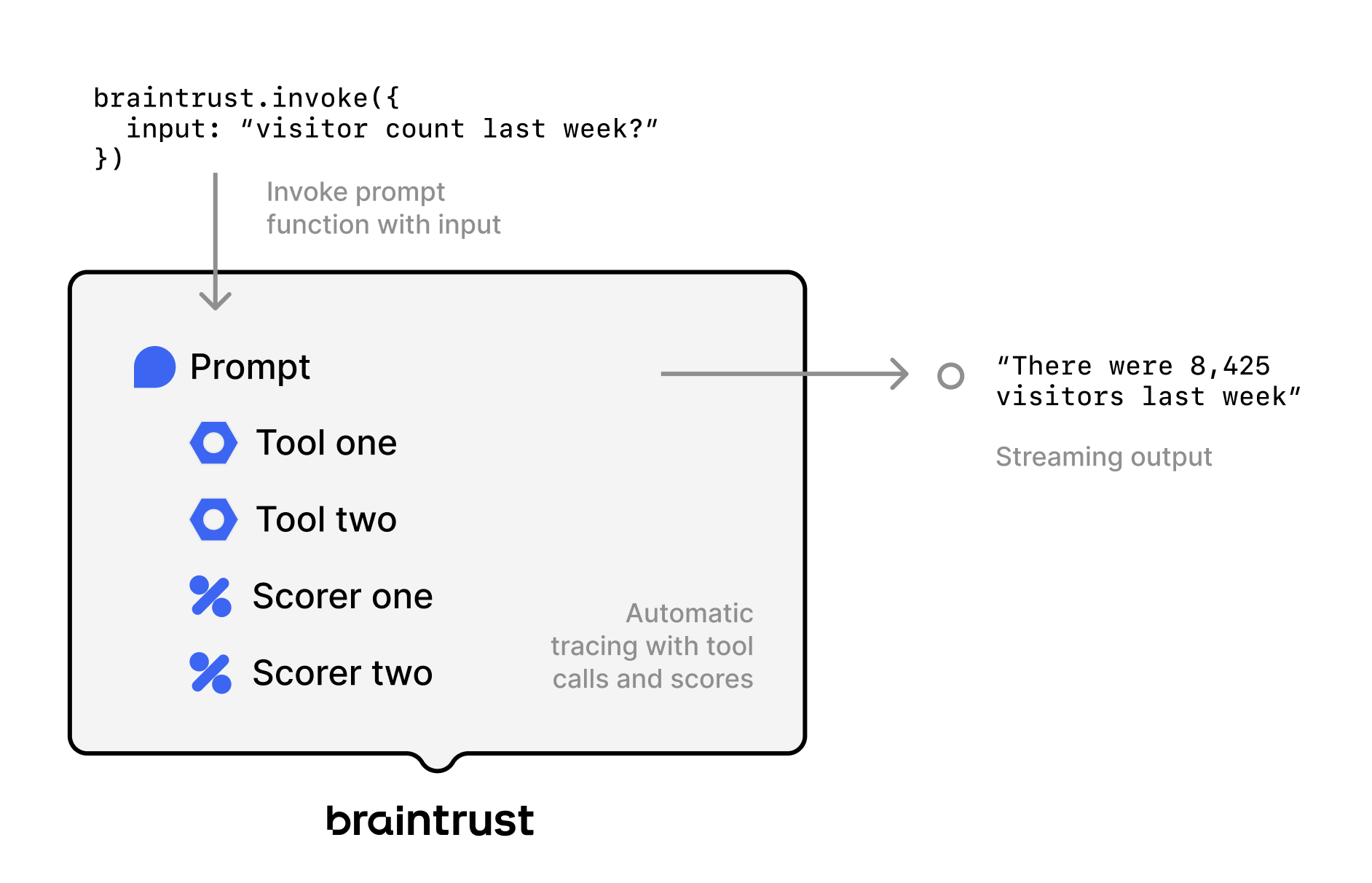
In this diagram, a prompt is being invoked with an input and calls two different tools and scorers to ultimately produce a streaming output. Out of the box, you also get automatic tracing, including the tool calls and scores.
Any function can be used as a tool. For example, a RAG agent can be defined as just two components:
* A vector search tool that embeds a query, searches for relevant documents, and returns them
* A system prompt with instructions for how to retrieve content and synthesize answers using the tool
For a complete example, see the cookbook for [Using functions to build a RAG agent](/cookbook/recipes/ToolRAG).
## Deploy tools
Tools are functions that LLMs can call to perform complex operations or access external data. Create tools in code and push them to Braintrust:
```typescript title="calculator.ts" theme={"theme":{"light":"github-light","dark":"github-dark-dimmed"}}
import * as braintrust from "braintrust";
import { z } from "zod";
const project = braintrust.projects.create({ name: "calculator" });
project.tools.create({
handler: ({ op, a, b }) => {
switch (op) {
case "add":
return a + b;
case "subtract":
return a - b;
case "multiply":
return a * b;
case "divide":
return a / b;
}
},
name: "Calculator",
slug: "calculator",
description: "A simple calculator that can add, subtract, multiply, and divide.",
tags: ["math"],
parameters: z.object({
op: z.enum(["add", "subtract", "multiply", "divide"]),
a: z.number(),
b: z.number(),
}),
returns: z.number(),
ifExists: "replace",
});
```
Push to Braintrust using the [`bt` CLI](/reference/cli/quickstart):
```bash theme={"theme":{"light":"github-light","dark":"github-dark-dimmed"}}
bt functions push calculator.ts
```
```python title="calculator.py" theme={"theme":{"light":"github-light","dark":"github-dark-dimmed"}}
from typing import Literal
import braintrust
from pydantic import BaseModel, RootModel
project = braintrust.projects.create(name="calculator")
class CalculatorInput(BaseModel):
op: Literal["add", "subtract", "multiply", "divide"]
a: float
b: float
class CalculatorOutput(RootModel[float]):
pass
def calculator(op, a, b):
if op == "add":
return a + b
elif op == "subtract":
return a - b
elif op == "multiply":
return a * b
elif op == "divide":
return a / b
else:
raise ValueError(f"Unsupported operation: {op}")
project.tools.create(
handler=calculator,
name="Calculator",
slug="calculator",
description="A simple calculator that can add, subtract, multiply, and divide.",
tags=["math"],
parameters=CalculatorInput,
returns=CalculatorOutput,
)
```
Push to Braintrust using the [`bt` CLI](/reference/cli/quickstart):
```bash theme={"theme":{"light":"github-light","dark":"github-dark-dimmed"}}
bt functions push calculator.py
```
### View and manage tools
Go to [** Tools**](https://www.braintrust.dev/app/~/tools) to view all deployed tools in your project. Use **Filter** or the search bar to find specific tools.
Click a tool to view its code. To test the tool, enter `input` data and click **Test**. You can also invoke a function directly from the terminal using [`bt functions invoke`](/reference/cli/functions):
```bash theme={"theme":{"light":"github-light","dark":"github-dark-dimmed"}}
bt functions invoke --slug calculator --input '{"op": "add", "a": 5, "b": 3}'
```
### Add tools to prompts
Once deployed, you can add tools to prompts in the UI or via code. See [Add tools](/evaluate/write-prompts#add-tools) for more details.
### Call tools directly
Call tools via the API without going through a prompt:
```typescript theme={"theme":{"light":"github-light","dark":"github-dark-dimmed"}}
import { invoke } from "braintrust";
const result = await invoke({
projectName: "calculator",
slug: "calculator",
input: {
op: "add",
a: 5,
b: 3,
},
});
console.log(result); // 8
```
```python theme={"theme":{"light":"github-light","dark":"github-dark-dimmed"}}
from braintrust import invoke
result = invoke(
project_name="calculator",
slug="calculator",
input={
"op": "add",
"a": 5,
"b": 3,
},
)
print(result) # 8
```
## Deploy scorers
Scorers evaluate the quality of LLM outputs. Braintrust supports three types:
* **[Autoevals](/evaluate/autoevals)**: Pre-built scorers for common tasks like factuality and semantic similarity.
* **[LLM-as-a-judge](/evaluate/llm-as-a-judge)**: Evaluate outputs using a language model and natural language criteria.
* **[Custom code](/evaluate/custom-code)**: Write TypeScript or Python scoring logic for rule-based or calculation-based checks.
Define scorers in code and push them with `bt functions push`, or create them directly in the UI. [Classifiers](/evaluate/write-scorers#classifiers) can't be pushed from code. To create a reusable classifier, build it in the UI. See [Scorers and classifiers](/evaluate/write-scorers) for details.
## Deploy workflows
Workflows chain multiple prompts together into workflows. Create workflows in playgrounds:
1. Navigate to **Playgrounds**
2. Click **+ Workflow**
3. Add prompt nodes by selecting **+** in the comparison pane
4. Use template variables to pass data between prompts:
* `{{dataset.input}}` - Access dataset inputs
* `{{input}}` - Access previous prompt's output
* `{{input.field}}` - Access structured output fields
5. Save the agent
Workflows automatically chain prompts and pass outputs between them. View deployed workflows in the **Workflows** library.
Workflows are in beta and work only in playgrounds. Agent deployment via SDK is coming soon.
## Invoke functions
Functions can be invoked through the REST API, SDK, CLI, or UI. When invoking a function, you can reference it by:
* **Slug**: The unique identifier within a project for any function type (e.g., `slug: "calculator"`)
* **Global function name**: Built-in Braintrust **scorers only** - globally unique functions like `Factuality` from autoevals
Reference a function by its slug within a specific project:
```typescript theme={"theme":{"light":"github-light","dark":"github-dark-dimmed"}}
import { invoke } from "braintrust";
const result = await invoke({
projectName: "my-project",
slug: "my-function",
input: { query: "hello" },
});
```
```python theme={"theme":{"light":"github-light","dark":"github-dark-dimmed"}}
from braintrust import invoke
result = invoke(
project_name="my-project",
slug="my-function",
input={"query": "hello"},
)
```
Global functions are built-in Braintrust scorers (like those from [autoevals](/evaluate/autoevals)). When invoking by global function name, you can explicitly specify `functionType: 'scorer'` (TypeScript) or `function_type='scorer'` (Python):
```typescript theme={"theme":{"light":"github-light","dark":"github-dark-dimmed"}}
import { invoke } from "braintrust";
const score = await invoke({
globalFunction: "Factuality",
functionType: "scorer",
input: {
output: "The capital of France is Paris",
expected: "Paris is the capital of France",
},
});
```
```python theme={"theme":{"light":"github-light","dark":"github-dark-dimmed"}}
from braintrust import invoke
score = invoke(
global_function="Factuality",
function_type="scorer",
input={
"output": "The capital of France is Paris",
"expected": "Paris is the capital of France",
},
)
```
If unspecified, the function type defaults to `scorer` for backward compatibility.
## Version functions
Like prompts, functions are automatically versioned. Pin specific versions in code:
```typescript theme={"theme":{"light":"github-light","dark":"github-dark-dimmed"}}
import { invoke } from "braintrust";
const result = await invoke({
projectName: "calculator",
slug: "calculator",
version: "a1b2c3d4", // Pin to specific version
input: { op: "add", a: 5, b: 3 },
});
```
```python theme={"theme":{"light":"github-light","dark":"github-dark-dimmed"}}
from braintrust import invoke
result = invoke(
project_name="calculator",
slug="calculator",
version="a1b2c3d4", # Pin to specific version
input={"op": "add", "a": 5, "b": 3},
)
```
## Override function data per call
Use `overrides` to deep-merge values into the resolved function data at invoke time, without modifying the saved function. This is useful for facet, code, global, and remote\_eval functions:
```typescript theme={"theme":{"light":"github-light","dark":"github-dark-dimmed"}}
import { invoke } from "braintrust";
const score = await invoke({
globalFunction: "Factuality",
functionType: "scorer",
input: { output: "...", expected: "..." },
overrides: {
config: { strict: true },
},
});
```
```python theme={"theme":{"light":"github-light","dark":"github-dark-dimmed"}}
from braintrust import invoke
score = invoke(
global_function="Factuality",
function_type="scorer",
input={"output": "...", "expected": "..."},
overrides={"config": {"strict": True}},
)
```
`overrides` does not affect prompt functions. Prompt parameters such as `model`, `options.params`, `messages`, and `tool_functions` are stored on a separate field that the override path does not modify. To execute a saved prompt with different parameters, render it locally with [`loadPrompt()` and `build()`](/deploy/prompts#build-prompts-locally), then call your LLM client directly.
## Sync with the CLI
Sync functions between the Braintrust UI and your local codebase using the `bt` CLI.
The `bt` CLI is required for push and pull. See the [CLI quickstart](/reference/cli/quickstart) for installation instructions.
* **Push to Braintrust:** Push changes from your codebase to the UI using [`bt functions push`](/reference/cli/functions). You can push one or more files.
```bash TypeScript theme={"theme":{"light":"github-light","dark":"github-dark-dimmed"}}
bt functions push calculator.ts
```
```bash Python theme={"theme":{"light":"github-light","dark":"github-dark-dimmed"}}
bt functions push calculator.py
```
* **Pull from Braintrust:** Pull changes from the UI to your codebase using [`bt functions pull`](/reference/cli/functions):
```bash TypeScript theme={"theme":{"light":"github-light","dark":"github-dark-dimmed"}}
bt functions pull --language typescript
```
```bash Python theme={"theme":{"light":"github-light","dark":"github-dark-dimmed"}}
bt functions pull --language python
```
Use `pull` to:
* Download functions from public projects so others can use them
* Vendor a specific function version into your codebase so it runs locally without fetching it from Braintrust at runtime
* Review changes to functions in pull requests
See [`bt functions`](/reference/cli/functions) for the full flag reference.
## Handle dependencies
Braintrust automatically bundles your code with any libraries and dependencies for serverless execution. Once code is bundled and uploaded to Braintrust, you cannot edit it directly in the UI. Any changes must be made locally in your codebase and pushed via [`bt functions push`](/reference/cli/functions).
* **TypeScript:** Braintrust uses `esbuild` to bundle your code. Bundling creates a single JavaScript file containing all necessary code, reducing the risk of version mismatches and dependency errors when deploying functions. The Braintrust SDK (`braintrust`, `autoevals`, `@braintrust/*`) is bundled into the archive automatically.
Since `esbuild` statically analyzes your code, it cannot handle:
* Dynamic imports
* Runtime code modifications
* Native libraries like SQLite
* **Python:** Braintrust uses [uv](https://github.com/astral-sh/uv) to cross-bundle dependencies to the target platform (Linux). The Braintrust SDK is vendored into the archive automatically. This works for most binary dependencies, except for libraries that require on-demand compilation.
If you encounter bundling issues, file an issue on GitHub for our [JavaScript/TypeScript](https://github.com/braintrustdata/braintrust-sdk-javascript/issues) or [Python](https://github.com/braintrustdata/braintrust-sdk-python/issues) SDKs.
## Use the REST API
Call any function via HTTP.
In the examples below, organizations on the EU [data plane](/admin/organizations#data-plane-region) should replace `api.braintrust.dev` with `api-eu.braintrust.dev`.
```bash theme={"theme":{"light":"github-light","dark":"github-dark-dimmed"}}
curl https://api.braintrust.dev/v1/function \
-H "Content-Type: application/json" \
-H "Authorization: Bearer $BRAINTRUST_API_KEY" \
-d '{
"project_name": "calculator",
"slug": "calculator",
"input": {
"op": "add",
"a": 5,
"b": 3
}
}'
```
See the [Data API reference](/api-reference/functions/invoke-function) for complete details.
## Function features
All functions in Braintrust support:
* **Well-defined parameters and return types**: Type-safe interfaces using Zod (TypeScript) or Pydantic (Python)
* **Streaming and non-streaming invocation**: Handle real-time and batch operations
* **Automatic tracing and logging**: All function calls are traced in Braintrust
* **OpenAI argument format**: Prompts can be loaded directly in OpenAI-compatible format
* **Version control**: Functions are automatically versioned with each deployment
## Organize functions
Functions are organized into projects using the `projects.create()` method. This method returns a handle to the project (creating it if it doesn't exist) that you can use to create tools, prompts, and scorers:
```typescript theme={"theme":{"light":"github-light","dark":"github-dark-dimmed"}}
import * as braintrust from "braintrust";
// Get a handle to the project (creates if it doesn't exist)
const project = braintrust.projects.create({ name: "my-project" });
// Use the project to create functions
project.tools.create({...});
project.prompts.create({...});
project.scorers.create({...});
```
```python theme={"theme":{"light":"github-light","dark":"github-dark-dimmed"}}
import braintrust
# Get a handle to the project (creates if it doesn't exist)
project = braintrust.projects.create(name="my-project")
# Use the project to create functions
project.tools.create(...)
project.prompts.create(...)
project.scorers.create(...)
```
If a project already exists, `projects.create()` returns a handle to it. There is no separate `.get()` method.
## Create custom table views
The **Tools** and **Scorers** pages support custom table views to save your preferred filters, column order, and display settings.
To create or update a custom table view:
1. Apply the filters and display settings you want.
2. Open the menu and select **Save view\...** or **Save view as...**.
Custom table views are visible to all project members. Creating or editing a table view requires the **Update** project permission.
## Set default table views
You can set default views at three levels:
* **Organization default**: Visible to all members when they open the page. This applies per page. For example, you can set separate organization defaults for Logs, Experiments, and Review. To set an organization default, you need the **Manage settings** organization permission (included by default in the **Owner** role). See [Access control](/admin/access-control) for details.
* **Project default**: Overrides the organization default for everyone viewing this project. To set a project default, you need the project-level **Update** permission. Project admins can set project defaults even without organization-level permissions. See [Access control](/admin/access-control) for details.
* **Personal default**: Overrides the project and organization defaults for you only. Personal defaults are stored in your browser, so they do not carry over across devices or browsers.
To set a default view:
1. Switch to the view you want by selecting it from the menu.
2. Open the menu again and hover over the currently selected view to reveal its submenu.
3. Choose **Set as personal default view**, **Set as project default view**, or **Set as organization default view**.
To clear a default view:
1. Open the menu and hover over the currently selected view to reveal its submenu.
2. Choose **Clear personal default view**, **Clear project default view**, or **Clear organization default view**.
Default view settings are mutually exclusive on a given view. Setting one type of default on a view automatically clears any other default that was previously set on the same view.
When a user opens a page, Braintrust loads the first match in this order: personal default, project default, organization default, then the standard "All ..." view (for example, "All logs view").
## Next steps
* [Write scorers](/evaluate/write-scorers) to create custom evaluation functions
* [Deploy prompts](/deploy/prompts) that use your tools
* [Monitor deployments](/deploy/monitor) to track function performance
* [Manage environments](/deploy/environments) to version functions across environments