> ## Documentation Index
> Fetch the complete documentation index at: https://braintrust.dev/docs/llms.txt
> Use this file to discover all available pages before exploring further.
# View your logs
> Browse and inspect production traces, create custom columns to surface relevant data, and organize logs with tags for faster triage and analysis.
## Browse logs
To view logs from your application in real-time, go to [** Logs**](https://www.braintrust.dev/app/~/logs) in your project.
By default, logs display as a table of traces where each row represents a complete trace with its root span. Select **Display** > **Row type** > **Spans** view to see all logged spans individually.
View individual spans when you want to:
* Analyze specific operations within traces.
* Find particular function calls or API requests.
* Examine timing for individual operations.
Use the **Filter** menu in the toolbar to narrow results. See [Filter and search](/observe/filter) for details.
Use [`bt view logs`](/reference/cli/view) to open a live, scrollable view of your project's logs from the terminal. Narrow results with a search term, a filter expression, or a time window without leaving the terminal.
```bash theme={"theme":{"light":"github-light","dark":"github-dark-dimmed"}}
bt view logs --search "error" # Full-text search
bt view logs --filter "scores.Factuality < 0.5" # Filter expression
bt view logs --window 30m # Last 30 minutes
```
Pass `--url` to jump directly to a specific view from the Braintrust app. See [`bt view logs`](/reference/cli/view) for the full flag reference.
## Built-in views
Each project provides default table views with common filters:
* **Default view**: Shows all records.
* **Non-errors**: Shows only records without errors.
* **Errors**: Shows only records with errors.
* **Unreviewed**: Hides items that have been human-reviewed.
* **Assigned to me**: Shows only records assigned to the current user for human review.
Use the menu to switch the table view.
Built-in views can't be modified, but you can create [custom table views](#create-custom-table-views) based on custom filters and display settings.
## Group related traces
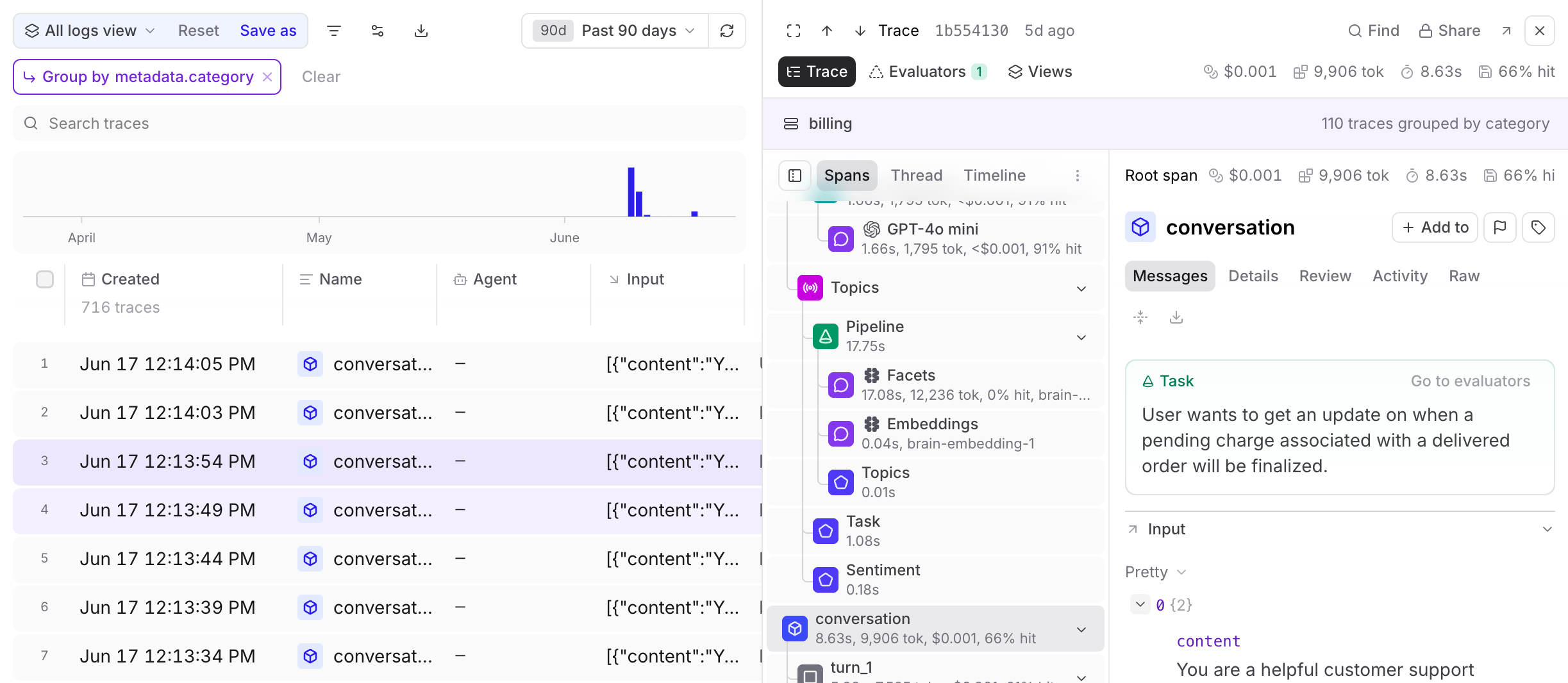
Group related traces by shared metadata or tags to understand multi-step operations.
1. Select **Display** > **Group trace by** and choose a tag or metadata path.
2. Select a trace with the grouped attribute to see it alongside all related traces
3. Switch to **Timeline** () view to see operation timing or **Thread** () view for the entire session.
## Examine a trace
Select any trace from the logs table to open it in the trace viewer. See [Examine traces](/observe/examine-traces) for details on navigating trace views, layouts, and actions.
## Delete traces
Delete traces from the log table using the Braintrust UI:
1. Select the traces you want to delete.
2. Click **Delete selected rows from current project logs**.
3. Confirm the deletion.
Mark logs for deletion by setting `_object_delete`:
```python theme={"theme":{"light":"github-light","dark":"github-dark-dimmed"}}
import os
import requests
API_URL = "https://api.braintrust.dev/"
headers = {"Authorization": "Bearer " + os.environ["BRAINTRUST_API_KEY"]}
# Find logs to delete
query = """
SELECT id
FROM project_logs('project-id', shape => 'traces')
WHERE metadata.user_id = 'test-user'
"""
response = requests.post(
f"{API_URL}/btql",
headers=headers,
json={"query": query}
).json()
ids = [row["id"] for row in response["data"]]
# Delete logs
delete_events = [{"id": id, "_object_delete": True} for id in ids]
requests.post(
f"{API_URL}/v1/project_logs/project-id/insert",
headers=headers,
json={"events": delete_events}
)
```
## Analyze with Loop
Use **Loop** to query and analyze your logs through natural language. Loop is available on both the main [** Logs**](https://www.braintrust.dev/app/~/logs) page and when viewing individual traces.
See [Analyze logs](/loop#analyze-logs) and [Analyze individual traces](/loop#analyze-individual-traces) for more details.
## Iterate in playgrounds
Extract prompts and inputs from logs to quickly test variations in playgrounds.
1. Select the rows you want to extract.
2. Select **Iterate in playground**.
3. Customize settings and optionally append to existing resources.
4. Select **Create playground**.
## Assign for review
You can assign traces to team members for review, analysis, or follow-up action. Assignments are particularly useful for human review workflows, where you can assign specific rows that need human evaluation and distribute review work across multiple team members.
See [Assign rows for review](/annotate/human-review/manage-review-work#assign-rows-for-review) for details.
## Organize with tags
Tags help you categorize and track specific types of data across logs, datasets, and experiments. See [Apply tags](/annotate/labels#apply-tags) for how to configure tags and apply them via the UI or SDK.
## Download logs
On the [** Logs**](https://www.braintrust.dev/app/~/logs) page, select and then **Download as CSV** or **Download as JSON**.
Use [`bt sync pull`](/reference/cli/sync) to download logs to local NDJSON files for offline analysis, backup, or migration.
```bash theme={"theme":{"light":"github-light","dark":"github-dark-dimmed"}}
bt sync pull project_logs:my-project --window 24h # Last 24 hours
bt sync pull project_logs:my-project --filter "scores.Factuality < 0.5" # Filtered subset
```
See [`bt sync`](/reference/cli/sync) for the full flag reference.
## Customize the logs table
### Show and hide columns
Select **Display** > **Columns** and then:
* Show or hide columns to focus on relevant data
* Reorder columns by dragging them
* Pin important columns to the left
All column settings are automatically saved when you save a view.
[Classifier](/evaluate/write-scorers#classifiers) labels appear as columns in the logs table. Filter or sort by a classification column to analyze patterns, such as finding all traces where a classifier assigned the `password_reset` label. [Topics](/observe/topics) add facet summary columns that work the same way.
### Create custom columns
Surface important metadata, scores, or nested values directly in the logs table by creating custom columns:
1. Select **Display** > **+ Add custom column**.
2. Name your column.
3. Choose from inferred fields or write a SQL expression.
For example, use `metadata.user_id` for a simple field reference, or write a more complex expression like `concat(metadata.plan, ' / ', metadata.region)` or `metadata.latency_ms / 1000.0`. You can use functions (`concat`, `coalesce`, `lower`), `CASE` expressions, arithmetic, and string patterns (`LIKE`, `ILIKE`). Aggregate functions such as `avg()` are not supported, and expressions cannot reference other custom columns.
### Change the table density
To change the table density to see more or less detail per row, select **Display** > **Row height** > **Compact** or **Tall**.
### Visualize topic distributions
When [topics](/observe/topics) are enabled, you can switch the Logs table to a topic distribution view that shows each topic as a card with its percentage of the total and trace count. See [Real-time analysis](/observe/topics/review-insights#real-time-analysis) for details and other real-time options.
### Create custom table views
To create or update a custom table view:
1. Apply the filters and display settings you want.
2. Open the menu and select **Save view\...** or **Save view as...**.
Custom table views are visible to all project members. Creating or editing a table view requires the **Update** project permission.
### Duplicate table views across projects
If you've built a useful custom table view in one project, you can duplicate it to another project via the API rather than recreating it from scratch.
1. Use the [list views](/api-reference/views/list-views) API endpoint to fetch the "logs" views in your source project. Pass the following query parameters:
* `object_type=project`
* `object_id=`
* `view_type=logs`
```bash theme={"theme":{"light":"github-light","dark":"github-dark-dimmed"}}
curl --request GET \
--url 'https://api.braintrust.dev/v1/view?object_type=project&object_id=&view_type=logs' \
--header 'Authorization: Bearer '
```
2. In the response, find the view you want to duplicate and copy its `view_data` and `options` payloads.
3. Use the [create view](/api-reference/views/create-view) API endpoint to create the view in the destination project. Set `object_id` to the destination project ID.
```bash theme={"theme":{"light":"github-light","dark":"github-dark-dimmed"}}
curl --request POST \
--url https://api.braintrust.dev/v1/view \
--header 'Authorization: Bearer ' \
--header 'Content-Type: application/json' \
--data '
{
"object_type": "project",
"object_id": "",
"view_type": "logs",
"name": "",
"view_data": ,
"options":
}'
```
### Set default table views
You can set default views at three levels:
* **Organization default**: Visible to all members when they open the page. This applies per page. For example, you can set separate organization defaults for Logs, Experiments, and Review. To set an organization default, you need the **Manage settings** organization permission (included by default in the **Owner** role). See [Access control](/admin/access-control) for details.
* **Project default**: Overrides the organization default for everyone viewing this project. To set a project default, you need the project-level **Update** permission. Project admins can set project defaults even without organization-level permissions. See [Access control](/admin/access-control) for details.
* **Personal default**: Overrides the project and organization defaults for you only. Personal defaults are stored in your browser, so they do not carry over across devices or browsers.
To set a default view:
1. Switch to the view you want by selecting it from the menu.
2. Open the menu again and hover over the currently selected view to reveal its submenu.
3. Choose **Set as personal default view**, **Set as project default view**, or **Set as organization default view**.
To clear a default view:
1. Open the menu and hover over the currently selected view to reveal its submenu.
2. Choose **Clear personal default view**, **Clear project default view**, or **Clear organization default view**.
Default view settings are mutually exclusive on a given view. Setting one type of default on a view automatically clears any other default that was previously set on the same view.
When a user opens a page, Braintrust loads the first match in this order: personal default, project default, organization default, then the standard "All ..." view (for example, "All logs view").
## Next steps
* [Analyze with Loop](/loop) using natural language queries
* [Filter and search](/observe/filter) to find specific traces
* [Score online](/evaluate/score-online) to evaluate production data
* [Create dashboards](/observe/dashboards) to monitor metrics